
Disabling the On-Screen Keyboard
The Allegro Wireless Keyboard eliminates the need for an on-screen keyboard. However, two types of on-screen keyboards may still appear:
System on-screen keyboard—Controlled by device settings
Gboard—A virtual keyboard app
The method you use to disable the on-screen keyboard depends on which keyboard is appearing, which isn't always easy to identify. Follow the sections below in order, stopping as soon as the on-screen keyboard turns off.
Turn Off the System On-Screen Keyboard
To turn off the system on-screen keyboard,
Ensure the Archer 4 is paired to the Allegro Wireless Keyboard.
From Settings, select System > Keyboard > Physical keyboard.
Turn off Use on-screen keyboard.
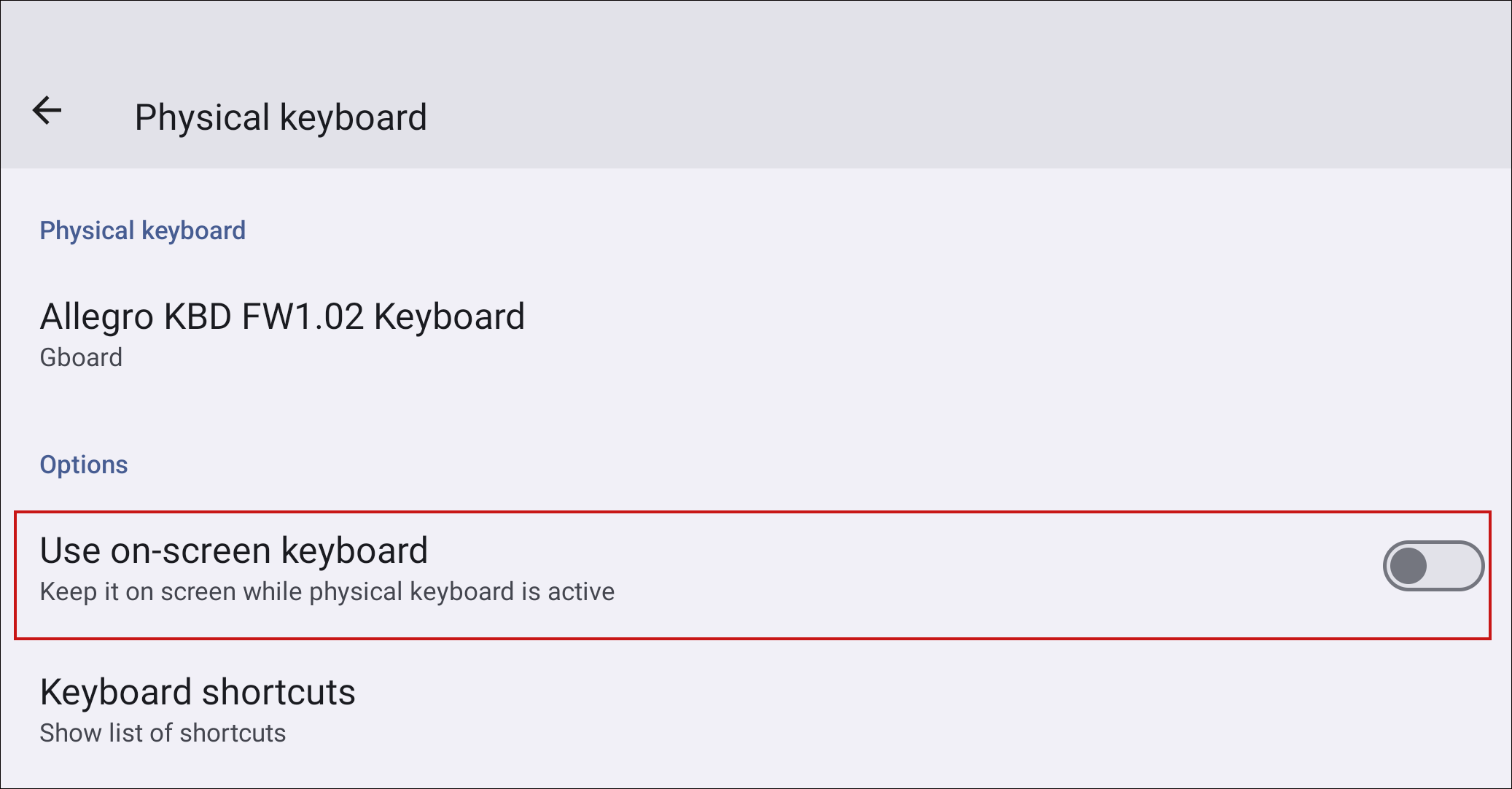
Note: The on-screen keyboard may briefly appear until you start typing on the Allegro keyboard.
Turn off the Gboard Keyboard and Any Third-Party Keyboards
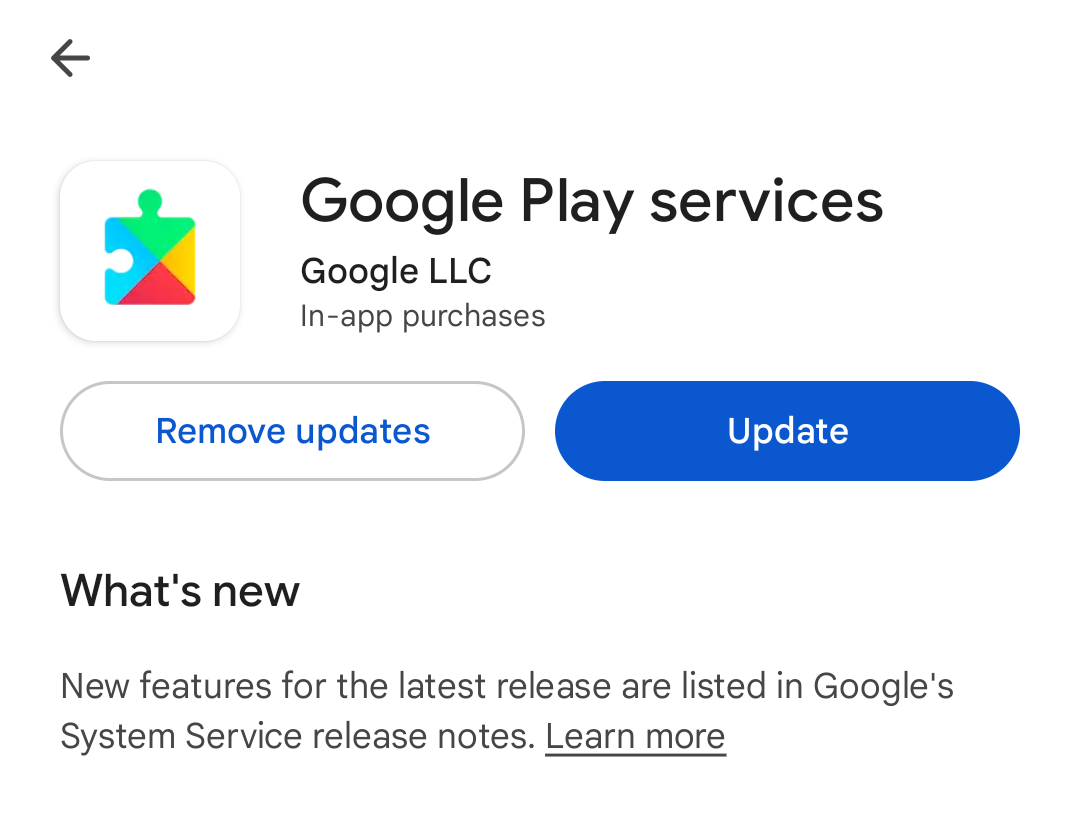
Update Google Play Services to the latest version.
Note: The setting for turning off on-screen keyboards is not available in some versions of Google Play Services.Open Settings and select Apps.
Under All apps, locate Google Play Services.
Scroll down and select App Details.
Select Update.
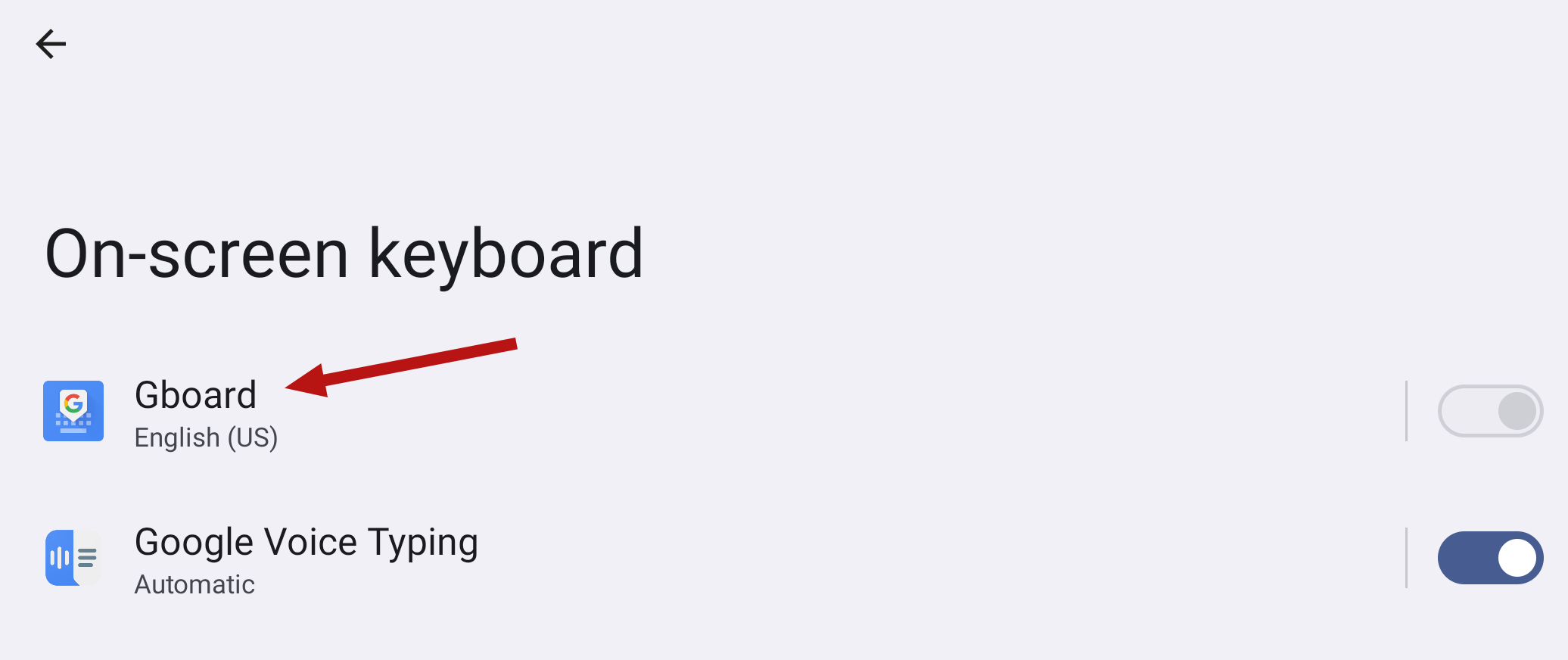
From Settings, select System > Keyboard > On-screen keyboard.
Tap Gboard.
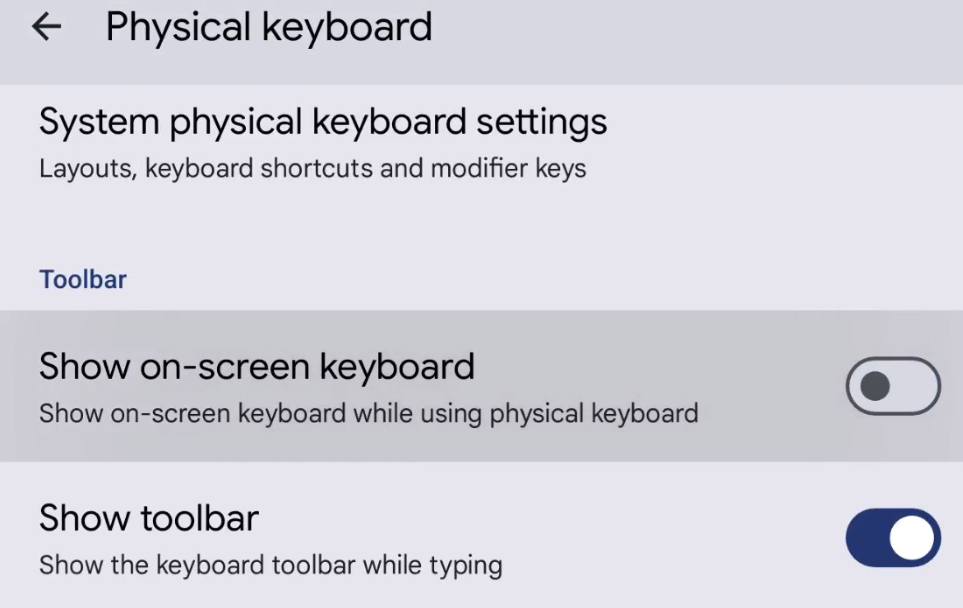
Select Physical keyboard.
Turn off Show on-screen keyboard.
Close Settings.
Disable the Gboard App
If you disable the Gboard app, you will need to enable it again when you're not using the external keyboard.
Open Settings.
In the search box, enter Gboard.
Tap Gboard app info.
Tap Disable.
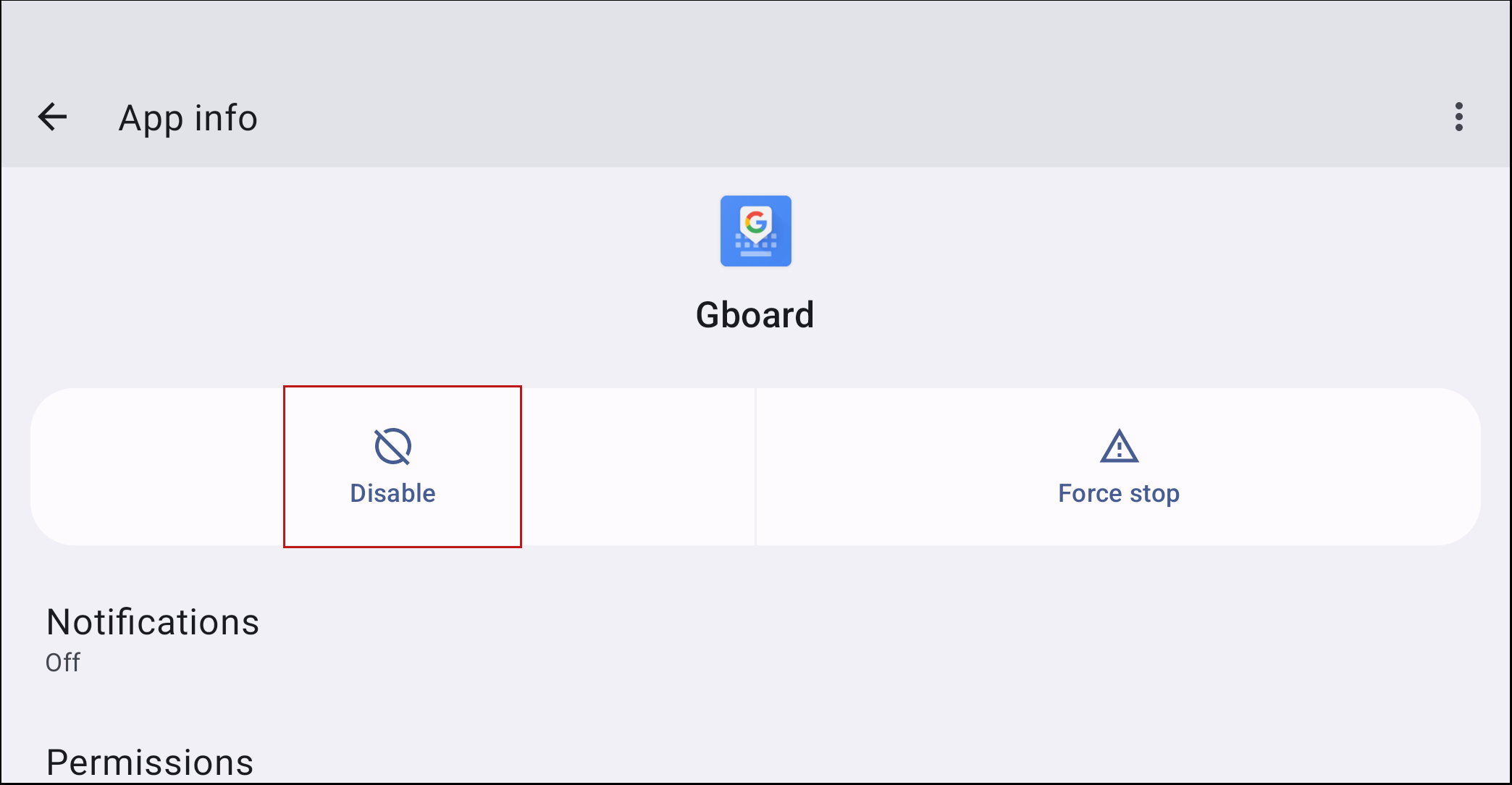
Confirm by tapping Disable app.
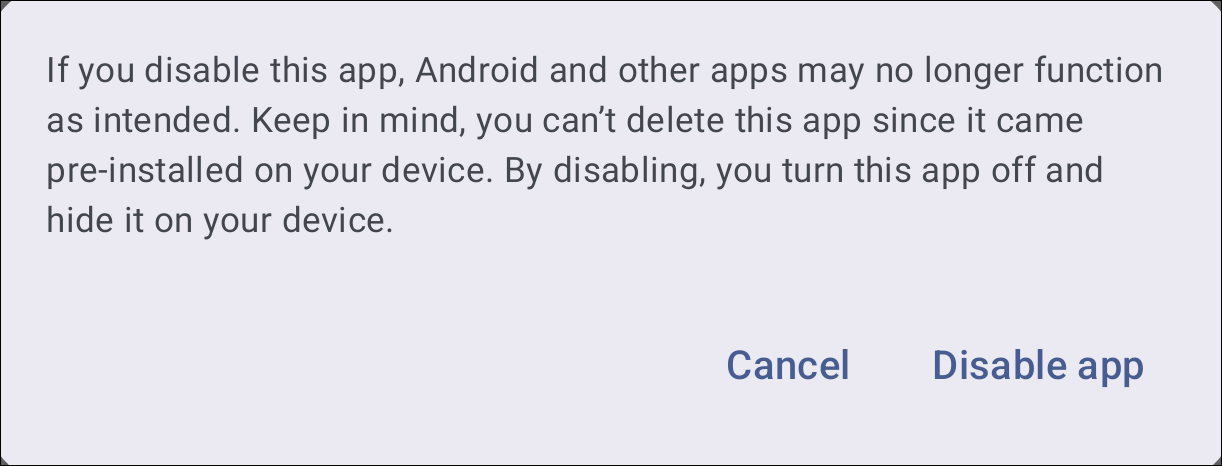
Note: Disabling Gboard may affect the functionality of some apps. You cannot delete Gboard because it is pre-installed on the device, but disabling the app will hide it.
Reviewed & Approved: KB, JB, 27AUG2025; Updated: JB, 22OCT2025