
Connect to ESRI ArcGIS Mobile Apps (Archer 4 GNSS Expansion)
Your Archer 4 GNSS expansion will work with ESRI ArcGIS mobile apps, such as ArcGIS Field Maps or ArcGIS Survey123. There are two methods to connect:
Use SBAS/SLAS correction services. See Method 1. SBAS/SLAS Correction Services with Field Maps or Method 1. SBAS/SLAS Correction Services with Survey123.
Use Archer Connect as the NTRIP/RTK client. See Method 2. NTRIP/RTK with Field Maps or Method 2. NTRIP/RTK with Survey123
For either method, ensure that Settings > Location > Use U-Blox USB GPS is enabled.
Method 1. SBAS/SLAS Correction Services with Field Maps
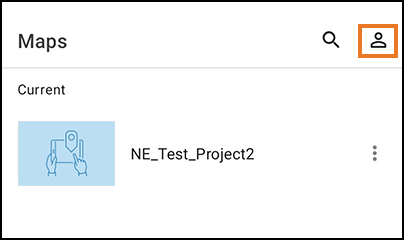
To connect in Field Maps,
Tap the profile icon.
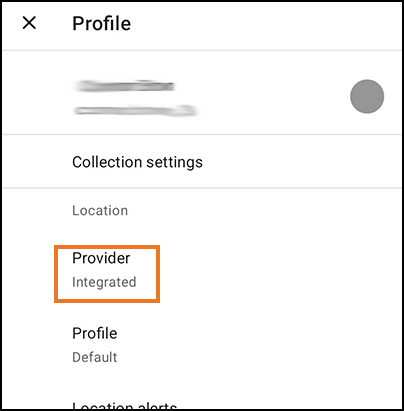
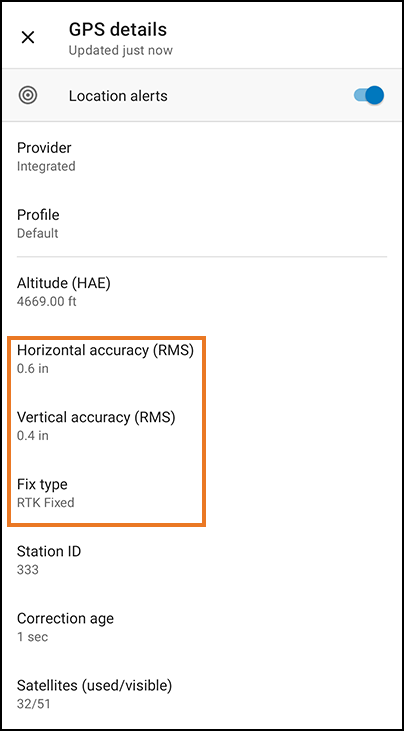
Set Provider to Integrated.
Method 1. SBAS/SLAS Correction Services with Survey123
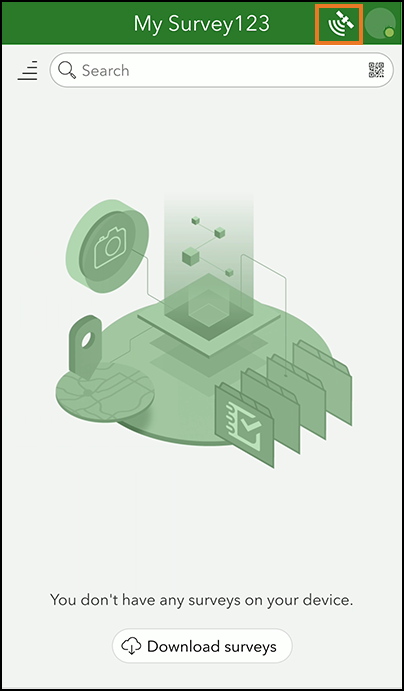
To connect in Survey123,
Tap

.
Tap

.
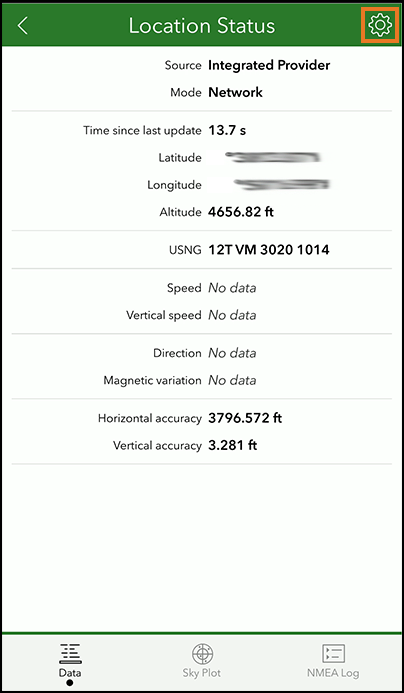
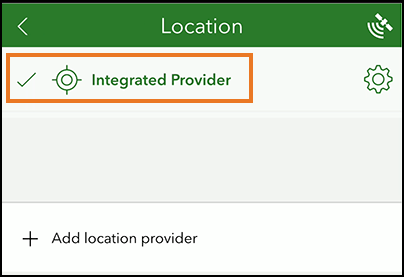
Select Integrated Provider.
Method 2. NTRIP/RTK Correction Service with Field Maps
To use the NTRIP/RTK correction service,
Open Archer Connect.
From the menu, select Receiver Configuration > NTRIP/RTK Configuration.
Establish an NTRIP/RTK connection. For more details, see the Archer Connect User Manual, 6.4 NTRIP/RTK Configuration (page 31).
Tap Start NTRIP/RTK.
Tap the profile icon.
Set the Provider to Integrated.
You are now ready to use Field Maps with NTRIP/RTK correction service.
Method 2: NTRIP/RTK with Survey123
To use the NTRIP/RTK correction service,
Open Archer Connect.
From the menu, select Receiver Configuration > NTRIP/RTK Configuration.
Establish an NTRIP/RTK connection. For more details, see the Archer Connect User Manual, 6.4 NTRIP/RTK Configuration (page 31).
Tap Start NTRIP/RTK.
Open Survey123.
Tap
.Tap
.
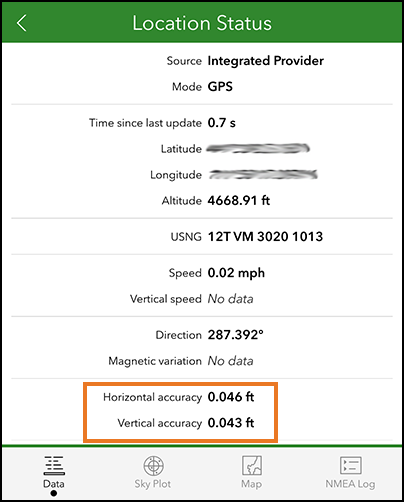
Select Integrated Provider.
You are now ready to use Survey123 with RTK/NTRIP correction service.
Reviewed & Approved JF, 19May2025