
Touchscreen Troubleshooting on Mesa 3 Windows
The list below includes some troubleshooting options for the Mesa 3 Windows touchscreen. We also offer Best Practices for Capacitive Touchscreen.
Make sure the screen is clean from all debris or other substances (including water).
Let the screen auto-rotate from portrait to landscape then back again.
Turn the Mesa 3 off and on to force the touchscreen to recalibrate.
If you are using a second external monitor, correct the display resolution and/or set the internal display to Main.
When moving the unit between environmental conditions, you may need to force the capacitive touchscreen to re-calibrate for use in the new conditions.
Attach a USB mouse to open our Touchscreen Profiles utility to select another profile to load and then switch back.
Perform a 20-second shutdown.
Shut down the Mesa 3.
Disconnect the tablet from all external power, including the AC wall charger or a dock.
Wait for the red LED to turn off.
Press the Power button for 20 seconds.
Release the Power button, and wait 30 more seconds for the electronic processes in the background to finish.
Plug in the tablet with the AC wall charger.
Press the Power button to power on the tablet.
Disable and Enable the HID-compliant touchscreen.
Use a connected USB mouse to right-click on the bottom-left Start menu.
Select Device Manager > Human Interface Devices.
Right-click HID-compliant touchscreen.
Select Disable.
Wait several seconds, then repeat steps 1-4 to Enable.
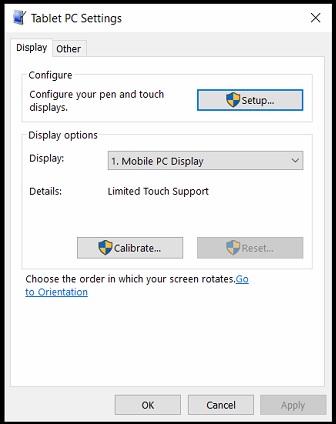
If the Microsoft Windows 10 calibration tool is used, it may degrade the touchscreen performance until a profile is loaded again. If loading or switching a touch profile does not fully resolve the issue,
Open the Tablet PC Settings control panel.
Select Reset.
If the touchscreen stopped working after a Windows Update,
Go to Start > Settings > Update & Security > Recovery.
Select the option to “Go back to the previous version of Windows 10” or “Go back to an earlier build.”
This option is only available for a limited time after updating. Do the Windows Update again, which should have more success in subsequent attempts.